DataViews
A dataview is a useful component in Cavaliba to improve access to relevant information.
It enables data administrators to create predefined views of Schemas and objects. These predefined views contain subsets of fields from a Schema. Users can select a dataview from a list in the Web UI for faster access to the data they need.
You can define multiple DataViews per Schema for different types of users or different needs.
For example, a site Schema describing various locations, headquarters, facilities, factories, buildings for a company, could use an Address dataview which would display only the relevant fields for postal/address such as City, Zipcode, Street, Country. Other dataviews for the same Schema could present Organization, Key Figures, Activities, etc.
DataView objects
DataViews are implemented as a special builtin Schema and can thus be managed from the Web UI, REST API, console CLI, import/export, etc.
Create a Dataview
- classname: _dataview
  keyname: site_postal
  target_class: site
  displayname: MySiteView_postal
  description: This View displays Geographical information about sites
  content: |
    columns:
      - SiteName:
          from: keyname
      - Address:
          from: address
      - zipcode
      - city
      - country
      - ISO
           from: country__iso
This configuration will create a dataview named site_postal for the (target_class) site.
The from option defines a source field which provides content for that column. An invalid from value will create an empty column. The intended use of the column/from pattern is to provide a way to supply nicer (custom, translated, compact, …) column names to users.
Column help popover and search filter (v5.1.0)
In the Web UI, each column header in the instance list can show a small “?” popover revealing the real underlying field name - useful to know what to type in the search box (see Search & Filters), especially when a column has been renamed with from. The popover also offers a Filter button that appends fieldname: to the search box for you to complete.
Two optional per-column YAML options control this, available on the from: (dict) column form:
content: |
  columns:
    - keyname
    - Login:
        from: keyname
    - Widget:
        from: my_enumerate_subfields__widget
        popover: no
    - owner__email:
filter: no- popover:
yes(default) orno- whether the “?” icon is shown at all for that column. - filter:
yes(default) orno- whether the popover’s Filter button is shown. Set tonowhen the column’s field isn’t actually searchable - for example an injected/computed field (a schema/external/enumerate subfield, e.g.owner__email,myenum__widget) is never indexed for search, so offering a Filter button on it would silently produce a query matching nothing.
Both options default to yes, so existing dataviews are unaffected - you only need to add filter: no (or popover: no) on columns where it matters. A column can also carry filter/popover alone, with no from:, when you just want to flag a plain field without renaming it (as in the owner__email example above).
Query filter (v5.3.0)
A dataview can also narrow which objects are listed, not just which columns are shown. The optional query field holds a search expression, in the syntax of the list page’s search box (see Search & Filters):
- classname: _dataview
  keyname: laptop_obsolete
  target_class: laptop
  displayname: Obsolete laptops
  description: Laptops still in the inventory but out of support
  query: status:obsolete
  content: |
    columns:
      - keyname
      - displayname
      - status
      - site
Selecting that dataview in the Web UI loads status:obsolete into the search box and lists only the matching objects.
Behaviour to keep in mind:
- The query is loaded only when the user selects the dataview. A query typed afterwards replaces it and is kept while browsing, paginating and coming back from an object’s detail page.
- An empty
queryleaves the current filter in place - it does not clear the search box. Selecting a view cannot be used to remove a filter; the user clears the box. - The query is applied as if typed, so it respects the user’s read permissions and can be edited or removed in the search box at any time.
- A
queryusing characters the search box itself rejects is ignored (a warning is logged), so a malformed dataview never silently lists nothing. - Like any search, a
field:valueterm reads the search index, which is refreshed asynchronously - a very recent change may not be matched yet.
Use a dataview
In the Web UI, the dataview selector is next to the Action button.
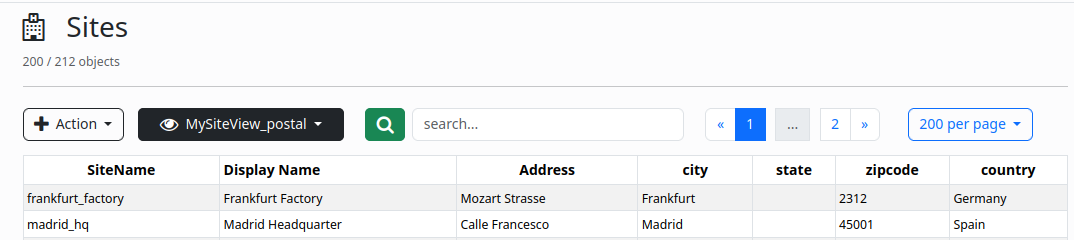
Default dataview
A schema without any associated dataviews will present default information in the Web UI, comprising keyname, displayname and last_update. This is not very useful.
You should create a default dataview for each Schema to present more relevant information by default.
By design, a default dataview is named with the schema name with a _default suffix.
Example (from the builtin Sirene Notification Application):
- classname: _dataview
  keyname: sirene_template_default
  target_class: sirene_template
  displayname: Default
  is_enabled: True
  description: Default DataView for Sirene Templates
  content: |
    columns:
       - keyname
       - displayname
       - Category:
            from: category
       - Severity:
            from: severity
       - Hint:
            from: hint